
Manage your subscription
See your plan, status and renewal date, and find every billing action in Account › Subscription & billing.
Watch the 1:06 video lesson or follow the steps below.
Everything about your plan is on the Account page, in the first card, Subscription & billing.
Open it
- Sign in at findnuro.com/app.
- Click Account (top right).
- The Subscription & billing card shows your plan, its status and the actions you can take.
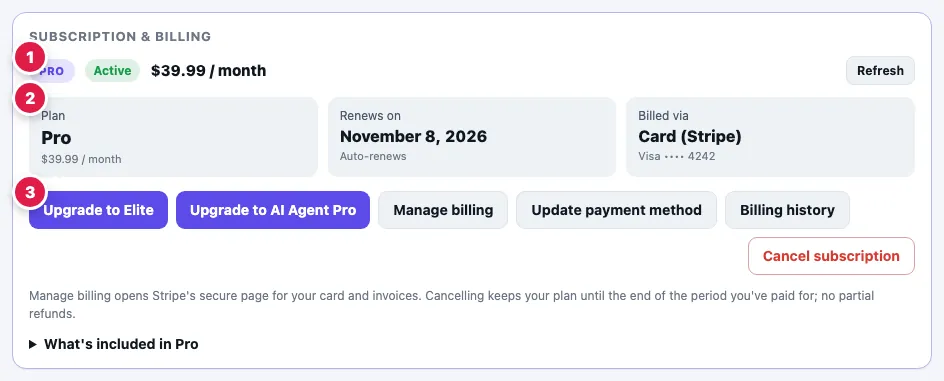
What you'll see
- Plan: Free, Pro, Elite or AI Agent Pro, and the price.
- Status: Active, Payment failed, Cancelled — ends soon, Expired, Payment incomplete, Free plan or Complimentary access.
- Renews on (or Access until) with Auto-renews or Will not renew.
- Billed via: Card (Stripe), Google Play (or another store), with the last digits of your card.
- What's included in (plan): expand it to see your plan's features.
Press Refresh if you've just paid or changed something and the card hasn't updated.
Actions
FindNuro shows only the actions that apply to your subscription:
| Button | What it does |
|---|---|
| Upgrade to (plan) / Downgrade to (plan) | Change plan (card subscriptions) |
| Manage billing | Opens Stripe's secure page for your card and invoices |
| Update payment method | Change your card |
| Billing history | Your invoices and receipts |
| Fix payment / Complete payment | Shown when a payment needs attention |
| Reactivate subscription | Undo a cancellation before the period ends |
| Keep (plan) (cancel the change) | Cancel a scheduled downgrade |
| Manage in Google Play | Google Play subscriptions are managed in the Play Store |
| Cancel subscription | Stop renewal. You keep your plan until the period ends |
Google Play subscriptions
If you subscribed in the Android app, manage it in the Play Store: your profile › Payments & subscriptions › Subscriptions › FindNuro.
Frequently asked questions
I paid but my plan still says Free.
Press Refresh. Make sure you're signed in with the same method you used to pay. Still wrong? Email contact@shahidllc.us.