
Install and connect the Chrome extension
Add FindNuro to Chrome, connect it to your account with a one-time code, and see FindNuro data on Amazon product pages.
Video coming soon. The steps below are complete.
The FindNuro Chrome extension shows FindNuro data right on Amazon product pages: the opportunity score, estimated monthly sales and revenue, price, rank, offers, reviews, the FBA fee and a quick profit check.
Step 1: Install the extension
- Open the FindNuro extension in the Chrome Web Store (opens in a new tab) in Google Chrome.
- Press Add to Chrome, then Add extension.
- Pin it: click the puzzle-piece icon in Chrome's toolbar and the pin next to FindNuro.
Step 2: Connect it to your account
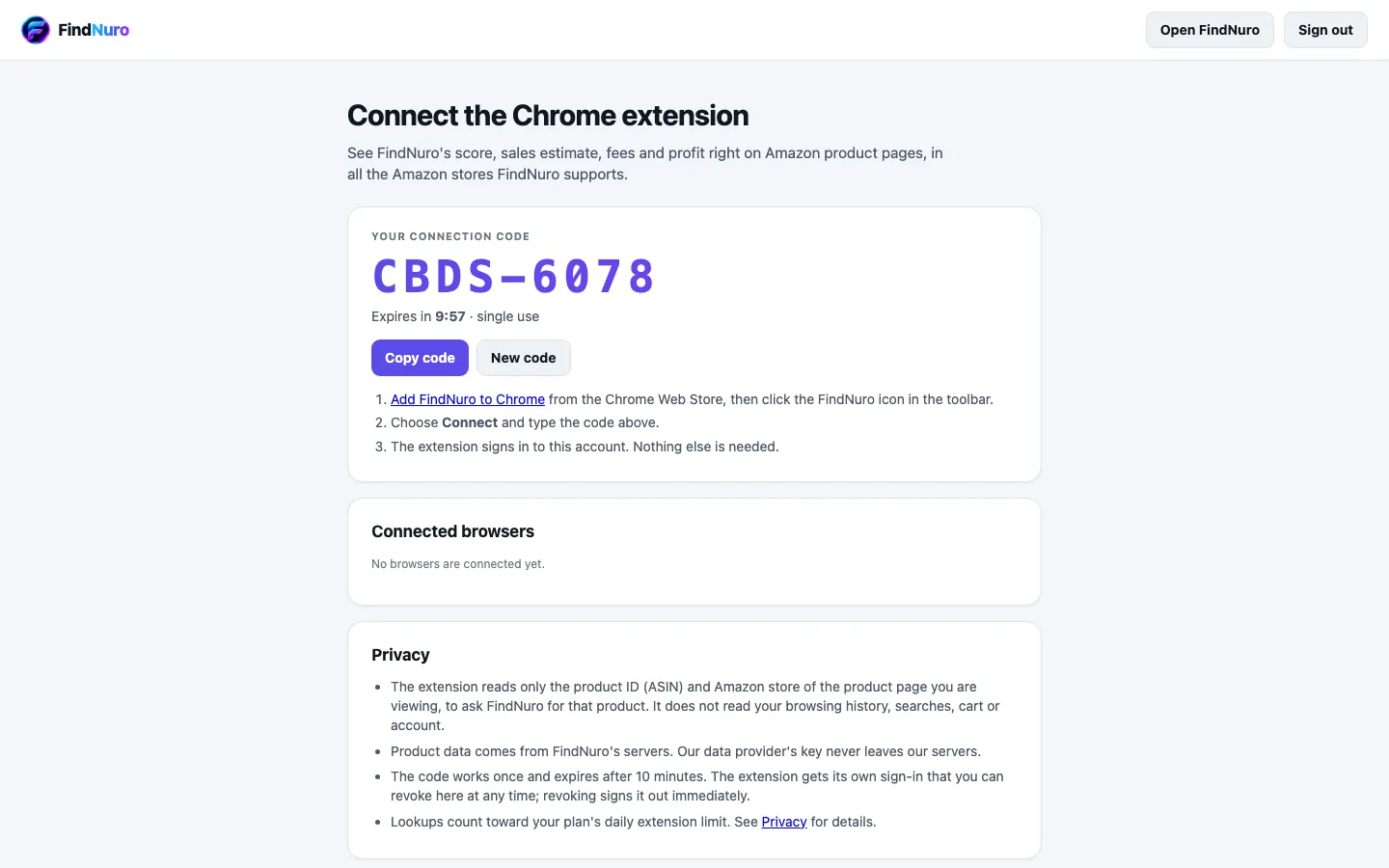
- Sign in to FindNuro and open findnuro.com/app/extension/connect. You'll see Connect the Chrome extension and Your connection code (it looks like ABCD-1234).
- Click the FindNuro icon in Chrome's toolbar. Type the code in the Pairing code box and press Connect. (The extension's Connect FindNuro account button opens this same connect page if you're not on it yet.)
- If the connect page shows a Connect this browser button, you can press it instead of typing the code.
- When it's done, the connect page says Connected. The extension is signed in to your FindNuro account.
The code works once and expires after 10 minutes. Press New code if it expired.
Step 3: Use it on Amazon
Open any product page on an Amazon marketplace that FindNuro supports. The FindNuro panel appears on the page with the product's numbers. Press Save to add the product to your watchlist.
Numbers labelled as estimates (such as monthly sales) are FindNuro estimates, not Amazon figures. The panel shows how each sales estimate was made, for example Modelled from the sales rank or Measured from Amazon's "bought in past month" badge (a minimum).
Manage connected browsers
The connect page lists your Connected browsers. Press Revoke to disconnect one, or choose Log out of this browser in the extension. To disconnect every browser at once, go to Account › Session › Sign out of all devices.
Frequently asked questions
The panel says "Not supported by FindNuro yet".
FindNuro only shows data for the Amazon marketplaces it covers. See Marketplaces and currencies.
I see "Daily lookup limit reached".
You've used today's lookups for your plan. They reset at midnight UTC. Elite and AI Agent Pro include 300 a day.
Does the extension read my Amazon account?
No. It reads only the product ID (ASIN) and the marketplace of the Amazon page you open. It does not read your browsing history, your cart or your Amazon account, and it does not change anything on Amazon. See the Privacy Policy.