
Search and filter products
Use Product Research to search by keyword, category, brand or ASIN, filter by metrics, sort the results and save your search.
Watch the 2:04 video lesson or follow the steps below.
Product Research is the do-it-yourself search. You choose every filter.
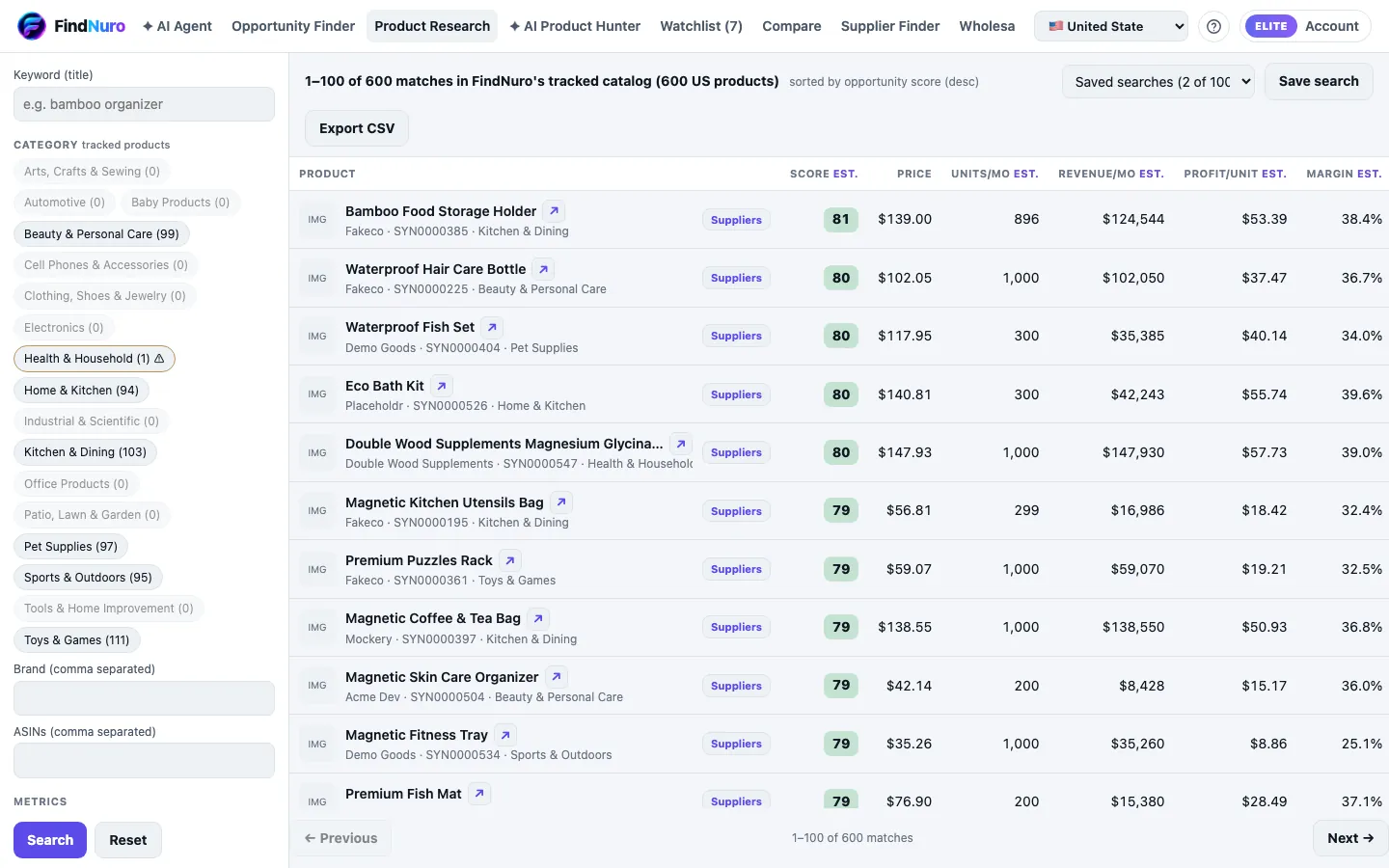
Run a search
- Open the Product Research tab.
- In Keyword (title), type a word from the product title, for example bamboo organizer.
- Optional: pick Category chips, and enter Brand or ASINs (comma separated).
- Under Metrics, set a Min and/or Max for any number, for example Price ($) 15 to 40 and Reviews up to 300.
- Optional: tick Exclude options such as Amazon sells this item or Oversized / heavy.
- Press Search. Press Reset to clear everything.
Filters you can use
- Price and BSR (sales rank): observed marketplace data.
- Monthly units, Monthly revenue, Monthly profit, Net margin, ROI: estimates (marked est.).
- Reviews, Rating, Sellers, Listing age (days), Weight (lb), Variations.
- 90-day price variation and 90-day rank trend.
- Competition score (0 to 100, higher = easier) and Opportunity score: estimates.
- Max brand share in its niche (%): how much of the niche one brand holds (estimate).
Read and sort the results
The table shows Product, Score est., Price, Units/mo est., Revenue/mo est., Profit/unit est., Margin est., ROI est., Reviews, Rating, BSR and Sellers.
- Click a column header to sort by it. Click again to reverse the order.
- Unavailable means FindNuro doesn't have that value for this product.
- Each row has a Suppliers button and an Amazon link (↗).
- Results come 100 per page; use Next → and ← Previous. Export CSV exports the rows shown.
- Your plan sets how many results you see: Free 10, Pro 100, Elite and AI Agent Pro 500. If you hit the cap you'll see Your (plan) plan shows the top N results for each search.
When a search finds nothing
Product Research searches the products FindNuro tracks, not every product on Amazon. The Category chips show how many products FindNuro tracks in each category. A category we track only thinly is marked ⚠ with a note, and the result count says, for example, 1–100 of 449 matches in FindNuro's tracked catalog.
If no product matches, FindNuro shows No matches in the catalog. A table shows each filter with Left after it, What it removed and Results without it, and highlights the filter that removed the last results:
- Press Remove next to a filter to search again without it, or Reset all filters.
- No known value means FindNuro has no data for that field on a product, so a range filter can't confirm it. Outside means the known value is outside your range.
- Same filters in other categories suggests categories that do have matches.
Search beyond our catalog
On Pro, Elite and AI Agent Pro, Search beyond our catalog looks up your filters with FindNuro's data provider and adds new matching products to FindNuro's catalog. You can use it 3 times a day; hold the pointer over the button to see how many are left. On the Free plan the button shows a 🔒.
- Run a search that uses at least a Category, a Keyword (title), or a Price, Monthly units or BSR range.
- Press Search beyond our catalog, next to the result count or in the No matches panel.
- FindNuro shows Found beyond FindNuro's catalog with how many candidates the data provider listed, how many new products were added and how many match your filters exactly. Each product is labelled Found via our data provider just now or Already in FindNuro's catalog.
- Press Back to catalog results to return to your normal results.
Values marked est. are FindNuro estimates, as everywhere else.
Save a search
Press Save search, give it a name, and it appears in the Saved searches menu and on the Watchlist tab. Free keeps 3, Pro 25, Elite and AI Agent Pro 100. Each marketplace keeps its own saved searches.
Frequently asked questions
Some filters were "Not applied". Why?
FindNuro shows Not applied (we don't have that data yet) for filters whose data isn't collected for this marketplace yet. The rest of your filters still apply.
Can I search by keyword search volume?
No. FindNuro doesn't collect keyword search volume.