
Use Opportunity Finder
Start from a research preset, refine the filters, read the opportunity score and its confidence, and act on a product.
Watch the 2:02 video lesson or follow the steps below.
Opportunity Finder is the fastest way to find products worth a closer look. Pick a preset (a ready-made research strategy), and FindNuro lists matching products with an opportunity score and the reasons behind it.
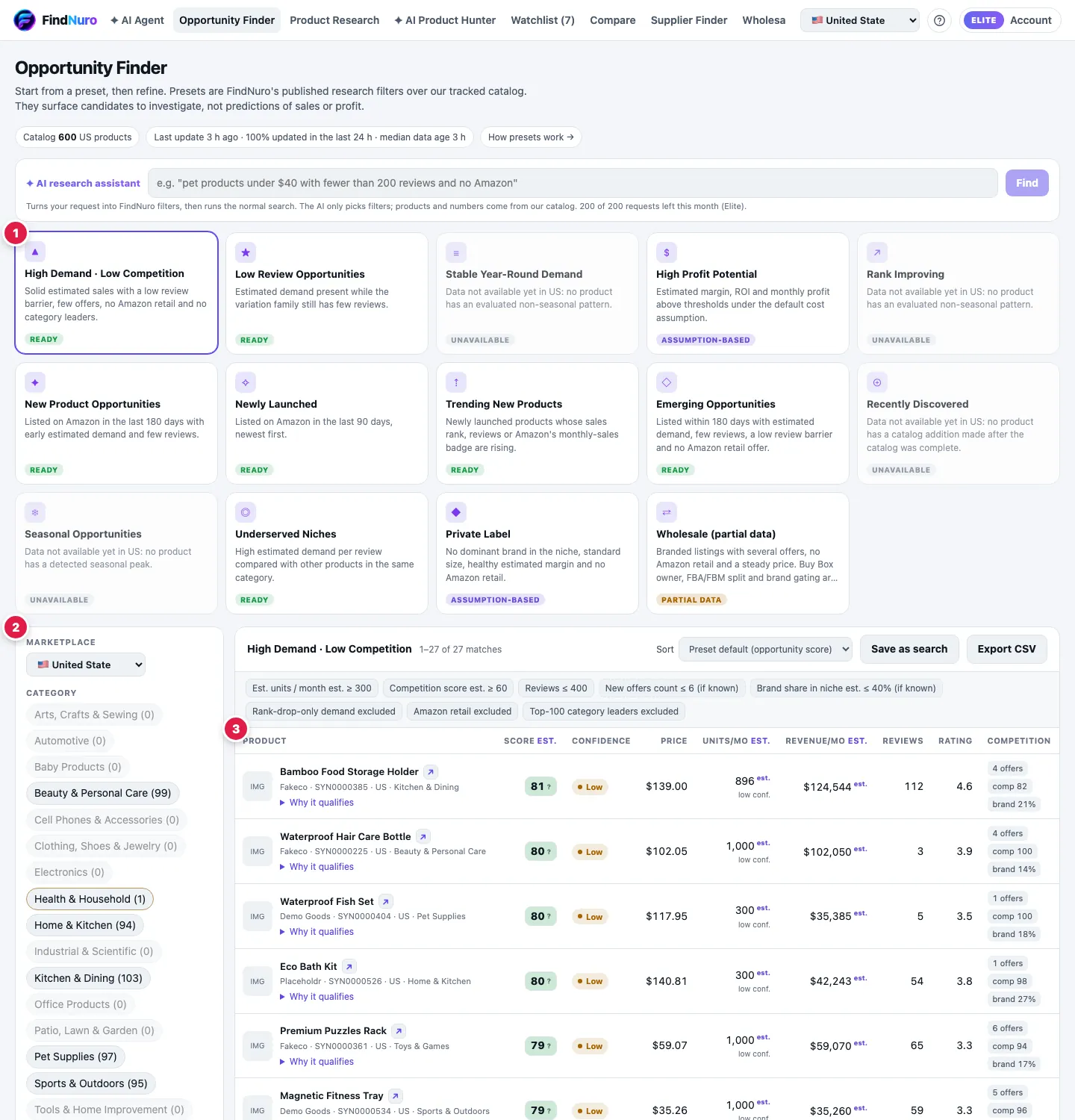
Step 1: Choose a preset
Opportunity Finder opens when you sign in. Choose a preset card at the top:
| Preset | Plans | What it looks for |
|---|---|---|
| High Demand · Low Competition | Pro, Elite | Good estimated sales with fewer reviews and sellers |
| Low Review Opportunities | Pro, Elite | Products where new listings face fewer reviews |
| Stable Year-Round Demand | Pro, Elite | Steady sales rank and price over time |
| High Profit Potential, Rank Improving, Seasonal Opportunities, Underserved Niches, Private Label, Wholesale (partial data) and the new-product presets | Elite | More specialised strategies |
Some presets carry a tag: Partial data (some inputs aren't collected yet), Assumption-based (uses default cost assumptions) or Unavailable (not enough data right now). Click How presets work → for the exact rules of each preset.
Step 2: Refine the filters
- Use the left sidebar to choose a Marketplace and Category.
- Adjust the filter groups: Demand, Competition, Price & profit, Stability, Data quality, Listing, Size and Risk. Press Show all filters to see everything (advanced filters need Elite).
- Results update automatically as you change filters.
- Press Reset to preset to undo your changes, or Clear filters to start from scratch.
Tip: tick Hide products whose data is older than 7 days if you only want the freshest data.
Step 3: Read the results
Each row shows the product, its Score est., a Confidence level, price, estimated units and revenue per month, reviews, rating, competition, risk and when the data was Updated.
- Opportunity score (0 to 100): ranks research candidates. It is not a prediction of sales or profit.
- Confidence: High, Medium, Low or Partial, depending on how much data was available.
- Why it qualifies: expand a row to see which preset rules it matched.
- Why this score: shows the reasons and risks. Elite shows the full component breakdown.
Use the sort menu to sort by opportunity score, estimated units or revenue, fewest reviews, price, sales-rank trend, and more. Results come 50 per page; use Next → and ← Previous.
Step 4: Act on a product
- Find suppliers: starts a Supplier Finder project for this product (unbranded products and single-seller own-brand listings).
- Find Authorized Wholesale Suppliers: shown instead for a brand that several sellers offer, and for every product in the Wholesale preset (Pro, Elite and AI Agent Pro). It opens the Wholesale tab with that brand. See Find authorized wholesale suppliers.
- Authorized wholesale: shown next to Find suppliers when the listing data can't tell a resold brand from one seller's own label, so you can choose.
- More ▾: Details, Charts, Profit, ☆ Watch, Compare and View on Amazon ↗.
The AI research assistant
Type what you want in ✦ AI research assistant (for example kitchen products under $30 with fewer than 200 reviews) and press Find. The assistant turns your words into filters you can see and change. Pro includes 20 requests a month; Elite and AI Agent Pro include 200. The counter shows how many are left.
Save or export
- Save as search keeps the current filters in your saved searches.
- Export CSV Coming soon: included with Pro and Elite, and switched on once our data provider confirms it. Until then the button is greyed out.
Troubleshooting
- "No products match": products with unknown values never match a range filter. Widen the most restrictive filter or press Reset to preset.
- "Stale data" tag: FindNuro refreshes most products every 12 to 72 hours. A stale tag means this product hasn't been refreshed recently.
Frequently asked questions
Is a high score a guarantee that a product will sell?
No. The score helps you decide what to research first. Always check the product yourself, including costs, competition, restrictions and Amazon's policies.
Why do Pro and Elite see the same score but different detail?
Every plan sees the same score. Elite also shows each component of the score and its weight.