
Find suppliers with Supplier Finder
Create a sourcing project, choose how to source, search supplier sites, record quotes, compare them, draft supplier messages and check landed cost.
Watch the 1:57 video lesson or follow the steps below.
Supplier Finder organises your sourcing for one product in a project. It's included with Pro (1 project, 5 searches and 5 AI drafts a month) and Elite and AI Agent Pro (100 projects, 30 searches and 100 AI drafts a month).
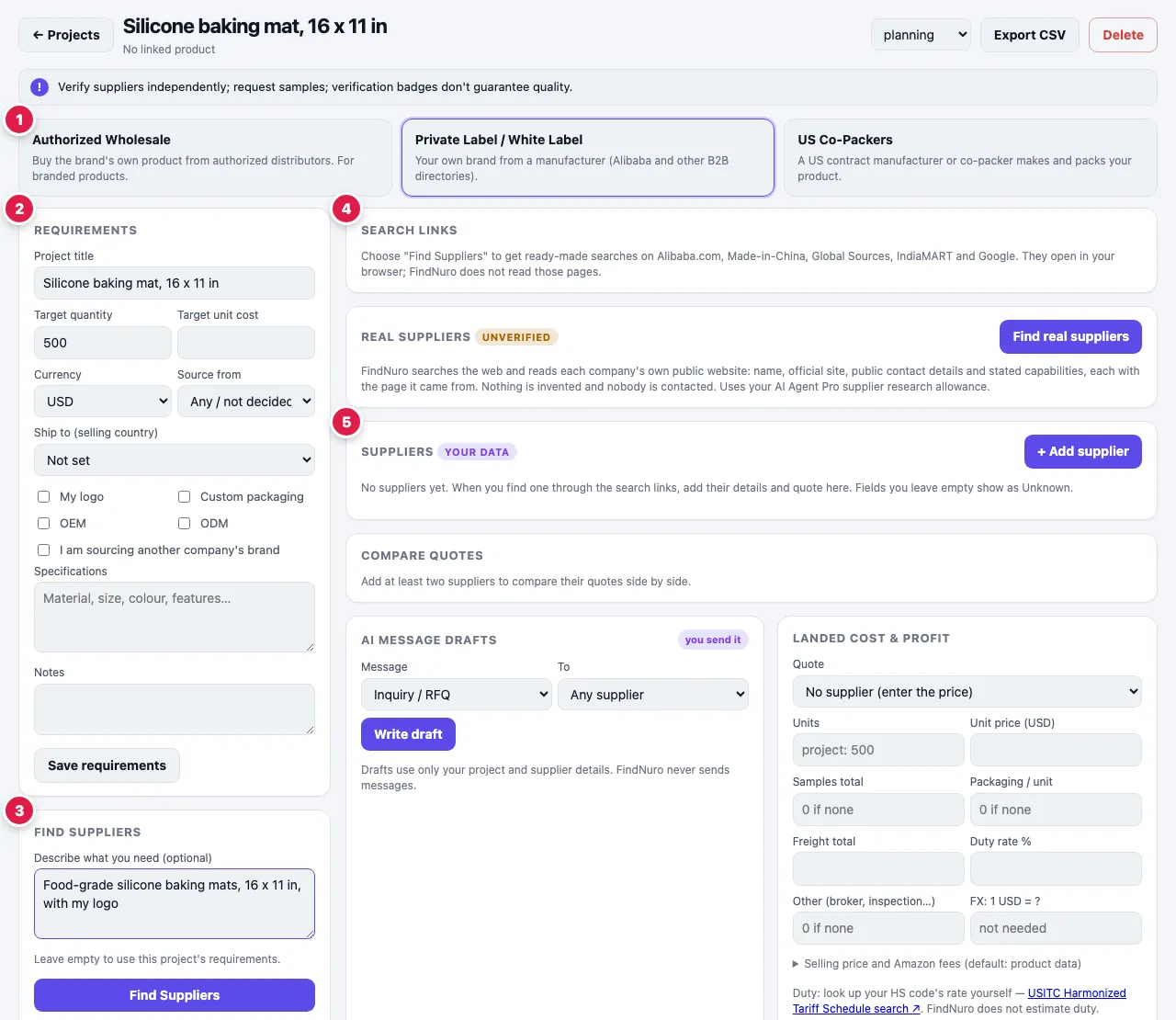
Step 1: Create a project
- From a product: press Find Suppliers in its details panel (or Find suppliers in Opportunity Finder). FindNuro creates a project for that product.
- Or open Supplier Finder, fill in What are you sourcing? and Quantity (optional), and press Create project.
Step 2: Choose how to source
At the top of the project, pick one of three options:
| Option | What it's for | Status |
|---|---|---|
| Private Label / White Label | Your own brand from a manufacturer (Alibaba and other B2B directories). Search links, real-supplier research and the steps below. | Available |
| Authorized Wholesale | Buying the brand's own product from the brand or its authorized distributors, for branded products. Opens authorized wholesale research (Pro, Elite and AI Agent Pro). | Available |
| US Co-Packers | A US contract manufacturer or co-packer makes and packs your product. | Coming soon |
Authorized Wholesale shows Find Authorized Wholesale Suppliers and Apply for Wholesale Account. Both open the Wholesale tab with this product's brand: see Find authorized wholesale suppliers for a brand. US Co-Packers isn't available yet.
The project opens on the option that fits the product: Authorized Wholesale for a brand that several sellers offer (or when you tick I am sourcing another company's brand in Requirements), and Private Label / White Label for unbranded products and single-seller own-brand listings. When the listing data doesn't show which one fits, a note asks you to choose. Alibaba.com and similar directories list manufacturers and traders, not authorized distributors of other companies' brands. To resell a brand on Amazon you need proof you may sell it, such as invoices from an authorized distributor or a letter of authorization.
Step 3: Set your requirements
In Requirements, note what matters: target quantity and unit cost, where you source from and ship to, logo, packaging, OEM/ODM, specifications and notes. Press Save requirements.
Step 4: Find suppliers
Under Private Label / White Label:
- In Find suppliers, describe what you need, for example Food-grade silicone baking mats, 16 x 11 in, with my logo. You can leave it empty and FindNuro uses the project's requirements (and linked product).
- Press Find Suppliers. This uses one supplier search and one AI request (repeating the same search within 7 days is free).
- Search links — not verified supplier matches appear, grouped by site: Alibaba.com, Made-in-China.com, Global Sources, IndiaMART (when sourcing from India or from anywhere) and Google (wholesalers and manufacturers in your selling region). A badge shows whether the searches use AI keywords or Your keywords.
- Open the links, browse the suppliers on those sites and contact the ones you like. Tip from the Alibaba group: use Alibaba's Verified Supplier filter on the results page. A badge is not a quality guarantee.
If the AI search doesn't work
You still get search links. If only the AI step fails, FindNuro shows links built from your own keywords with a note (for example that the AI service is busy, or a reference number if something went wrong on our side) and a Retry AI search button. You are not charged a search when the AI step fails.
If the request itself fails, the panel shows the error with Retry and Show keyword links instead. Keyword links use your own words and don't use an AI search. If you've reached your plan's limit, you'll see See plans instead.
Step 5: Find real suppliers (AI Agent Pro)
The Real suppliers card (under Private Label / White Label) searches the web for real companies and reads each company's own public website: name, official site, public contact details and stated capabilities, each with a source ↗ link to the page it came from. Press Find real suppliers (later Search again).
- Results are labelled Unverified. Nothing is invented and nobody is contacted.
- Only companies that say on their own website that they make (or, for wholesale, sell wholesale) this kind of product are shown, with that statement and its page. News and media sites, directories, blogs and articles are never shown as suppliers, and neither is a company that is only mentioned on someone else's page. If none qualifies, you'll see no results rather than a wrong one; the search links above still work.
- Results appear as each company is checked, usually within 15 seconds, while FindNuro keeps checking more websites ("Searching more sites…"). The whole search takes about 30 seconds, never more than 80.
- For private label, the search looks for makers of the product type in your Source from country (or, if it isn't set, your Ship to country), for example "hair growth serum private label manufacturer India". It never searches for the brand of the listing you want to compete with.
- A company listed on a B2B directory (IndiaMART, Made-in-China, Alibaba) can be shown when FindNuro finds and checks its own website. The card then says Found via a directory listing; every fact on the card still comes from the company's own site.
- If the project's Source from (or, if not set, Ship to) is the United States, the search looks for US companies.
- The companies found are saved to the project's suppliers, marked Found by FindNuro web research.
- This uses your AI Agent Pro supplier research allowance (20 a day). On Pro and Elite the card says it's included with AI Agent Pro and shows See plans. A failed search isn't charged; press Retry.
Step 6: Record suppliers and quotes
Press + Add supplier and enter what the supplier told you: price tiers, MOQ, lead time, Verification (as shown/stated) and Certifications claimed. Each card shows Entered by you (or Found by FindNuro web research) and Unverified.
Step 7: Compare quotes
With two or more suppliers, open Compare quotes. Elite and AI Agent Pro also get an ✦ AI summary, based only on the quotes you entered.
Step 8: Draft messages
In AI message drafts, choose the message (for example Inquiry / RFQ, Sample request or MOQ negotiation), press Write draft, then Copy it and send it yourself. FindNuro never sends messages.
Step 9: Check landed cost and profit
In Landed cost & profit, enter your quote, freight and duty rate and press Calculate. FindNuro doesn't estimate import duty: look up your HS code's rate (the card links to official tariff tools) or ask your freight forwarder or customs broker.
Frequently asked questions
Why does Supplier Finder show search links instead of a supplier list?
FindNuro doesn't have verified supplier data, so it sends you to each site's own search instead of guessing. On AI Agent Pro, Find real suppliers adds companies found on the public web, still unverified. Supplier matches from a connected Alibaba.com account are Coming soon (see Find on Alibaba).
Can I find authorized wholesale distributors here?
Yes, on Pro, Elite and AI Agent Pro. Choose Authorized Wholesale in the project, or use Find Authorized Wholesale Suppliers on a branded product. See Find authorized wholesale suppliers for a brand. Don't buy branded goods from unauthorized sellers.
Can I export or delete a project?
Yes. Use Export CSV or Delete at the top of the project. The status menu (for example planning) helps you track progress.
What counts as a search?
Each Find Suppliers press that uses the AI. Repeats within 7 days, keyword-only links and searches whose AI step failed are free. The projects page shows This month: x of y supplier searches · x of y AI drafts.